Updated September 8, 2026 · By Ryan Bold
You can keep Ethernet and Wi-Fi connected on a Windows 11 PC. That does not automatically combine their speeds. For a typical connection, Windows chooses a route to the destination; two connected adapters are not the same thing as a bonded internet service.
The useful question is what you want the second connection to do: reach a local device, provide a fallback internet path, or carry a separate application’s traffic. Each goal needs a different setup.
What two connections can and cannot do
| Goal | What to expect |
|---|---|
| Ethernet internet plus a Wi-Fi printer | Possible when routing allows access to both networks |
| Prefer Ethernet for internet traffic | Route and interface metrics influence selection |
| Add two broadband speeds together | Requires a suitable bonding or multipath solution; an adapter checkbox is insufficient |
| Keep a call uninterrupted when a link fails | Not guaranteed; an existing session may need to reconnect |
Inspect before changing anything
Open PowerShell and run these read-only commands:
Get-NetIPConfiguration
Get-NetIPInterface -AddressFamily IPv4 |
  Sort-Object InterfaceMetric |
  Format-Table InterfaceAlias,ConnectionState,AutomaticMetric,InterfaceMetric
route print -4
Record the adapter names and which networks provide a default gateway. A VPN or a more specific route can affect the result. IPv6 has its own routes, so an IPv4-only change is not a complete description of how all traffic leaves your PC.
Microsoft explains that Windows prefers the longest matching route prefix and then uses metrics to distinguish otherwise matching routes. See route metrics and Automatic Metric.
A useful two-network example
Imagine a PC using Wi-Fi for internet access and Ethernet for a local test device. The test device does not provide internet access. Adding a default gateway to that isolated Ethernet connection can send internet traffic down the wrong path. Keep the local-device route distinct from the internet route and follow the device vendor’s addressing instructions.
This example also explains why two adapters connected to the same router usually do not double broadband speed: both ultimately share the same upstream service, and a normal connection still follows its selected route.
Prefer one adapter, when necessary
Automatic Metric is usually a sensible default. If you deliberately change it, open ncpa.cpl, choose the adapter’s Properties, open IPv4 Properties, then Advanced. Record the original setting before changing Automatic metric or its value. A lower metric can prefer that interface among matching routes, but it does not override a more specific route.
Make changes locally, not through the network session you might disconnect. On a managed computer, ask the administrator because VPN and security policies may control routing.
Ask Windows which route matches one destination
Instead of guessing from adapter icons, inspect the selected route to an address you intend to reach. This example uses a documentation-only address and does not test a real website:
Find-NetRoute -RemoteIPAddress 203.0.113.10For a real diagnosis, substitute the known IP of your local resource or destination. Microsoft’s Find-NetRoute reference describes the returned local address and route. Route selection does not prove that the remote service is online, and a hostname may resolve to several IPv4 or IPv6 addresses.
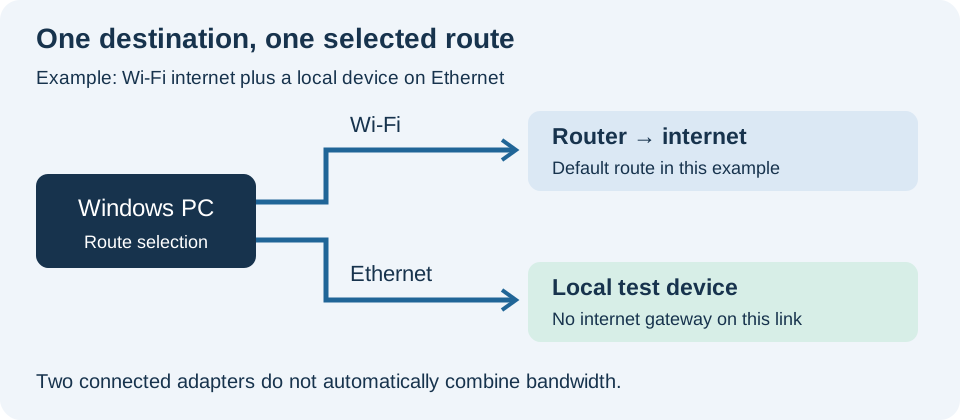
Compare the result with the resource you are trying to reach. If a local device and your Wi-Fi use overlapping subnets, address selection can become ambiguous even when both adapters say Connected. Record the two subnets and consult the device or network administrator before changing addresses. Random metric changes can conceal the conflict without making the network layout correct.
Common mistakes and a simple check
Do not disable Priority & VLAN to “combine” connections. That driver feature is not internet bonding. Avoid bridging two networks unless you understand the resulting network exposure.
After a deliberate change, test internet access and the local resource separately. Then test each connection alone. If behavior worsens, restore the recorded setting, including Automatic Metric where it was originally enabled. Change one setting at a time so the result is attributable.
If you are troubleshooting a phone-to-PC transfer, use the Quick Share diagnostic sequence to distinguish network discovery, acceptance and file receipt problems.