Updated September 8, 2026 · By Ryan Bold
If Google Photos says your storage is full, first identify which storage is full: your Google Account or your phone. They are separate limits. Removing a downloaded copy from the phone can free device space while leaving the Google Account warning exactly as it was.
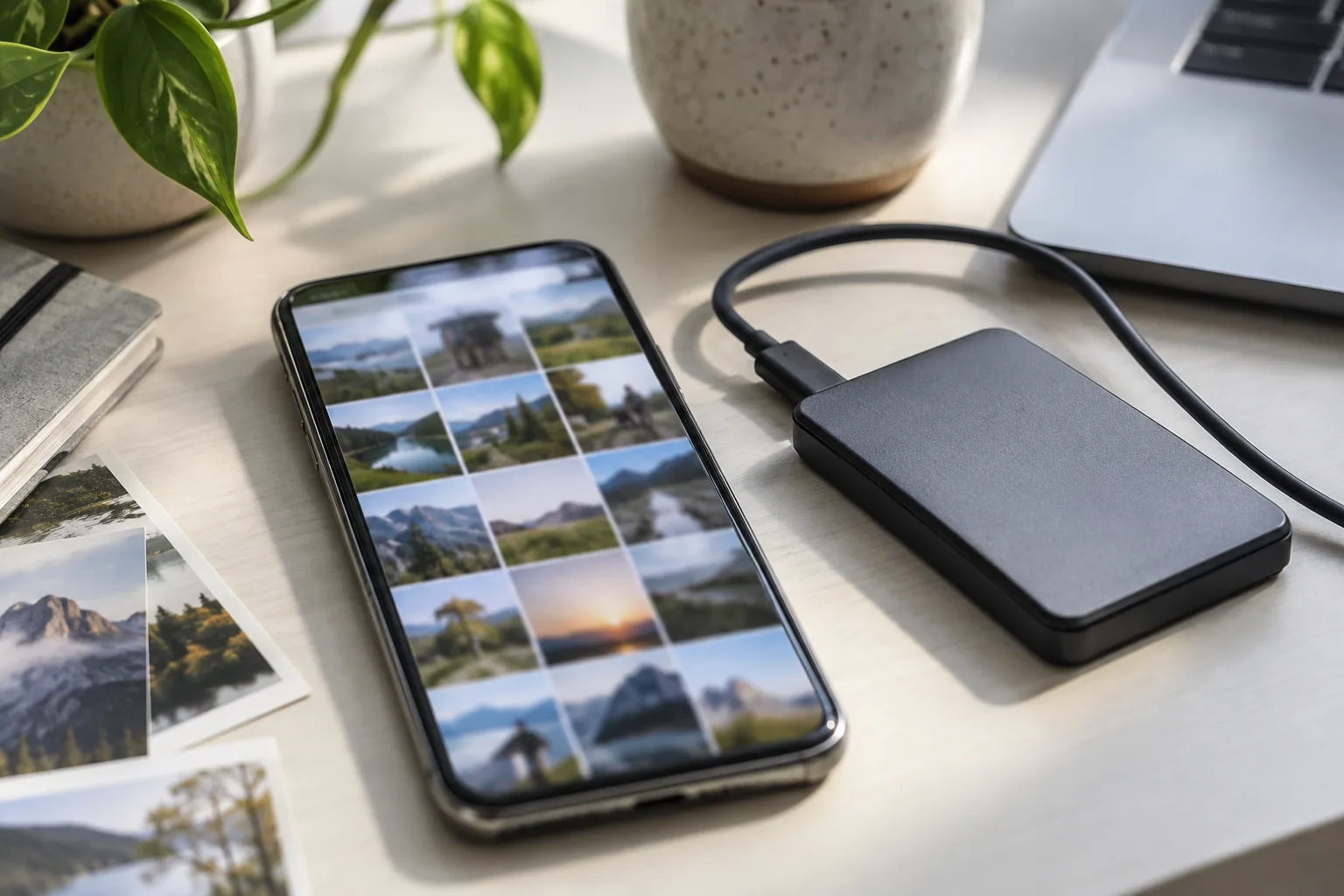
This walkthrough focuses on Android and the Google Photos website. Button names can vary by app version. Before deleting anything, confirm the account shown in the app and decide which copy you intend to keep.
Start with two storage numbers
Record the phone’s used and available space from Android Settings, then check the account storage summary in Google Photos. Google’s storage-management instructions describe the path through Photos settings, Backup and Manage storage. Look at which Google service consumes the quota before assuming that photos are the whole problem.
| What you see | What it means | Useful first action |
|---|---|---|
| Phone nearly full; account has room | The local device is the bottleneck. | Check backup completion before removing local copies. |
| Account full; phone has room | Cloud quota is the bottleneck. | Review quota-consuming items and the service breakdown. |
| Both nearly full | You need a plan for two separate copies. | Create and verify an independent copy before cloud cleanup. |
For example, a fictional 128 GB phone may have only 2 GB free while its owner’s account still has 4 GB available. Deleting 500 MB of already-backed-up local video would help the phone. It would not create another 500 MB of cloud capacity. Write the two numbers down so you can measure the effect of each action.
Understand the three buttons before using them
Free up space on this device: Google says this removes local copies that are safely backed up. They remain available through Google Photos, but those removed copies will not be available in the phone’s ordinary gallery or offline. This is explained in Google’s device-space guide. It is not a way to reduce the cloud quota.
Delete: Deleting in Google Photos can affect the backed-up item and synchronized devices. Archive: archiving changes organization rather than deleting the item. Google’s deletion instructions explain these consequences. Read the confirmation and the retention deadline displayed in Trash; do not rely on Trash as your backup strategy.
Also check whether the phone manufacturer’s gallery is connected to Google Photos. Some gallery integrations propagate deletions to the cloud, as covered in Google’s default-gallery access documentation. “I deleted it in another app” does not necessarily mean that the cloud copy was untouched.
Make one verified copy before a large cleanup
- Choose a small group of photos and videos you can recognize. Include at least one long video and one older photo.
- Copy or export the originals to storage you control, such as a computer and an external drive. Keep the source files in place for now.
- Open the copied files from their new location. Check the video plays beyond its first frame, inspect the photo at full size, and confirm the expected filenames or dates.
- Disconnect from the network briefly and open the local copies again. This helps catch a shortcut or online-only placeholder mistaken for a downloaded file.
- Only then decide which cloud or device copies to remove. Work in batches small enough that you can describe what changed.
A transfer-complete message is weaker evidence than opening the copied file. If you use wireless transfer to a PC, our Quick Share troubleshooting guide includes a simple receipt check. A successful transfer creates another copy; it does not automatically organize or maintain a backup archive.
Reduce cloud usage by measured batches
Start with items whose size and purpose are clear: an unwanted screen recording, an accidental duplicate upload or a large video you have independently preserved. Review each item rather than deleting a whole date range because a thumbnail looks familiar.
Use a small log like this illustrative example:
| Batch | Keep elsewhere? | Check after cleanup |
|---|---|---|
| Three unwanted screen recordings | No, after viewing them | Did account usage decrease after processing? |
| Family videos copied to two drives | Yes; open the copies first | Can the saved files still be played independently? |
| Older photos with uncertain quota treatment | Keep while investigating | Does the item actually count toward storage? |
Do not promise yourself that deleting a file of a particular size will immediately reduce the displayed quota by exactly that amount. Accounting, trash state and the item’s backup history can change the result. Recheck the storage summary before starting the next batch.
Know what changing backup quality does
Google’s backup-quality documentation explains that account storage is shared and distinguishes Original quality from Storage saver. Some older Storage saver uploads, from before June 1, 2021, do not count toward quota. Changing future upload quality is separate from converting existing originals through the recovery option.
If you consider converting existing files, preserve originals first and compare a sample. Fine text, cropped details and video quality may matter later even if the small preview looks the same. A space-saving conversion is a quality decision, not just a housekeeping button.
September 2026 note: Google says Google Photos backup through Drive for desktop ended on August 10, 2026. Check the current computer backup instructions before relying on an old automatic upload routine.
Finish by checking the next upload
After cleanup, create a harmless test photo and check its backup status in the intended account. Confirm the phone and cloud storage numbers again. Keep a short note of what you deleted, where the retained copies live and which backup method now handles new files.
If account access itself is uncertain, first follow our Google Account security checks. Storage cleanup is much easier when you know exactly which account owns the library and can sign in to verify it.